
Help
How can I help?
One place for GrowBig owners and clients. Give me access to your HubSpot, find the theme tutorial and answers, or ask me directly.
For clients
Give me access to your HubSpot
I work inside your own HubSpot account, as a user you create. 8 steps, about ten minutes. Pick a step to see where to click.
Step 1 of 8
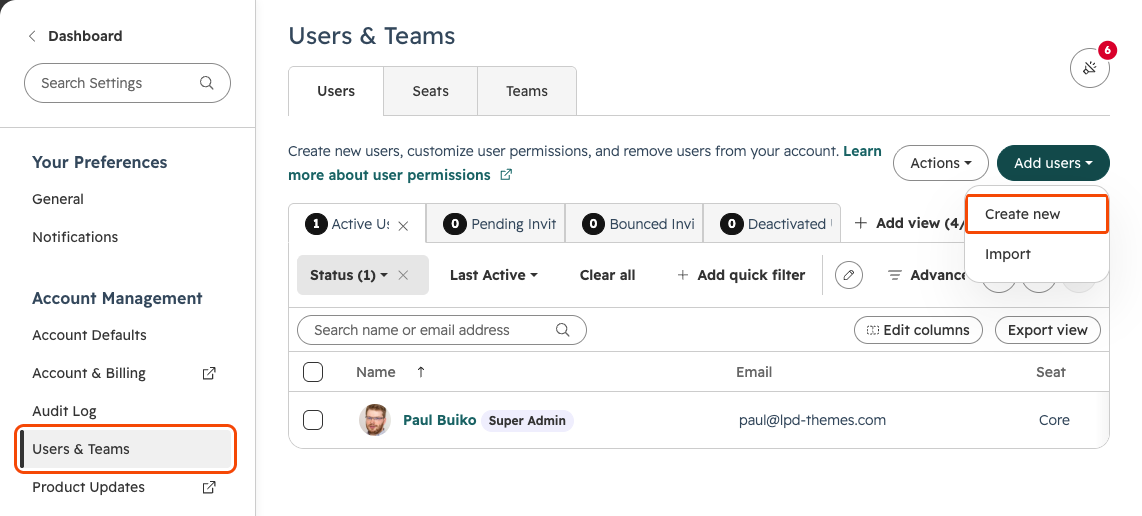
Open Users & Teams
In HubSpot, click the settings icon, open Users & Teams, then click Add users › Create new.
Step 2 of 8
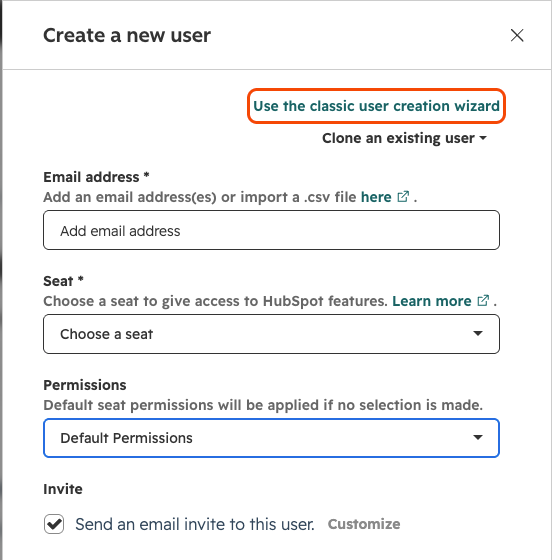
Use the classic wizard
In the panel that opens, click Use the classic user creation wizard. It lets you choose each permission.
Step 3 of 8
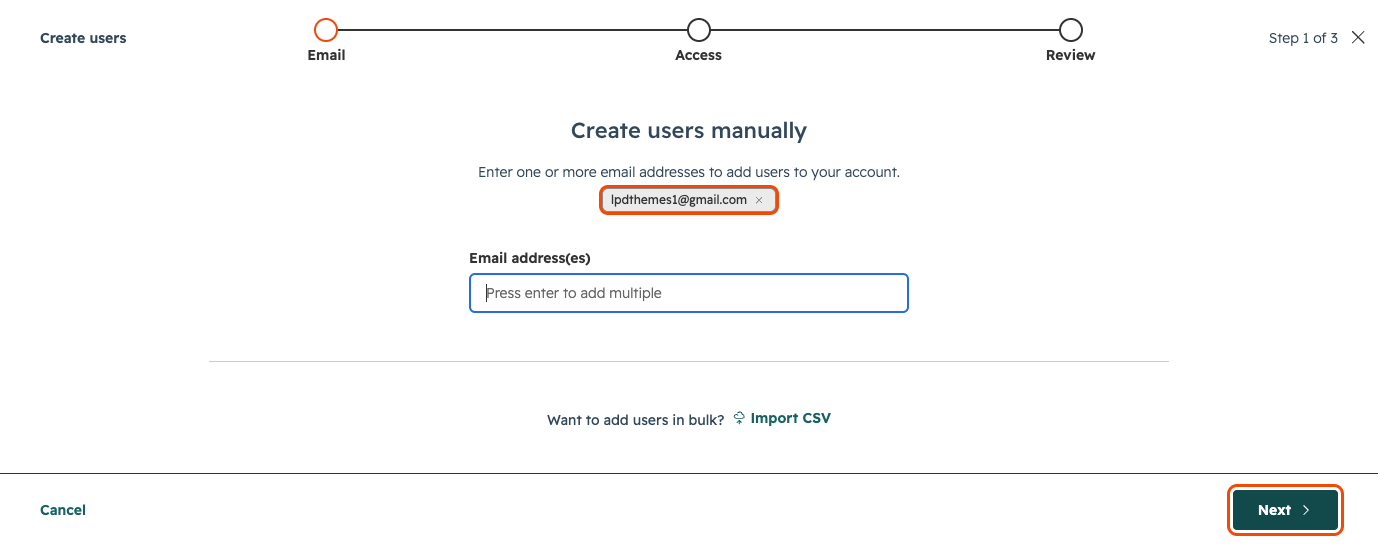
Add my email
Type lpdthemes1@gmail.com press Enter, then click Next.
Step 4 of 8
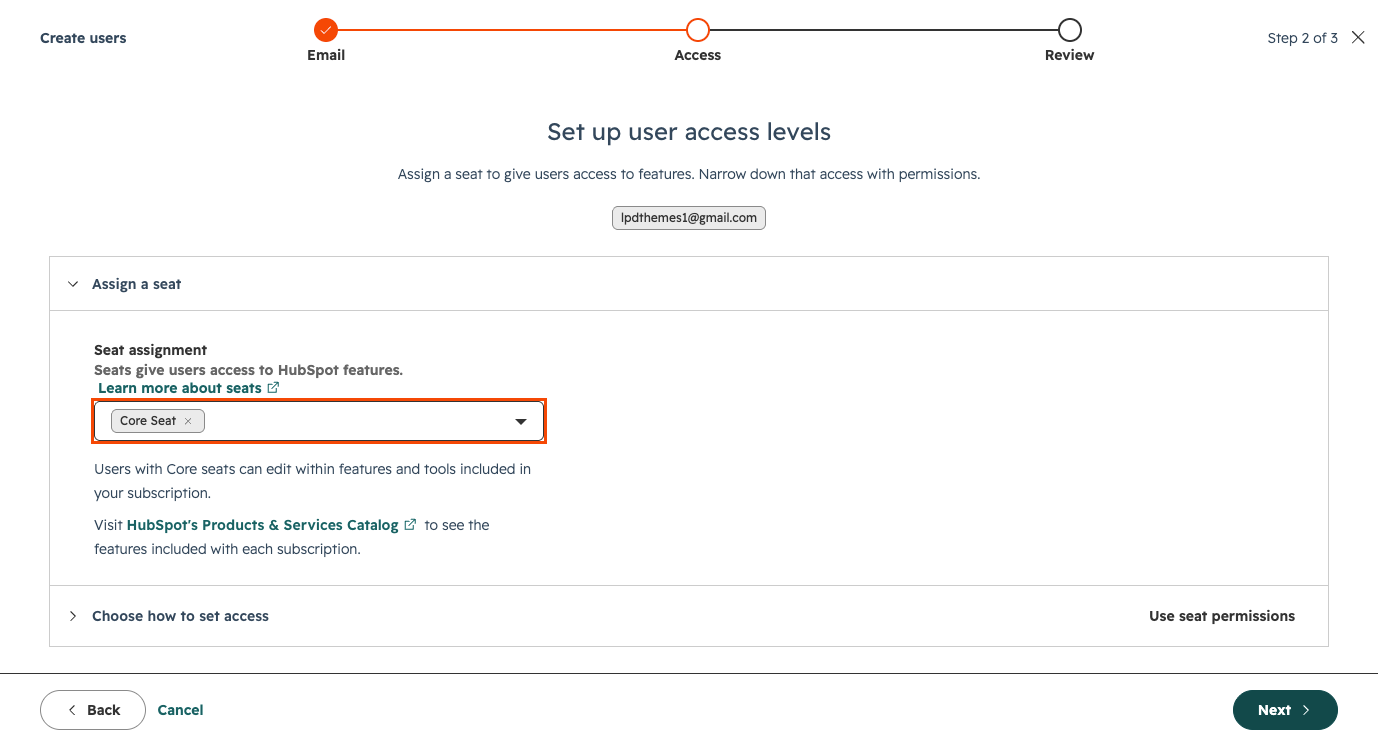
Give me a Core seat
Under Assign a seat, choose Core Seat. Users with a Core seat can edit; a View-only seat can’t.
Step 5 of 8
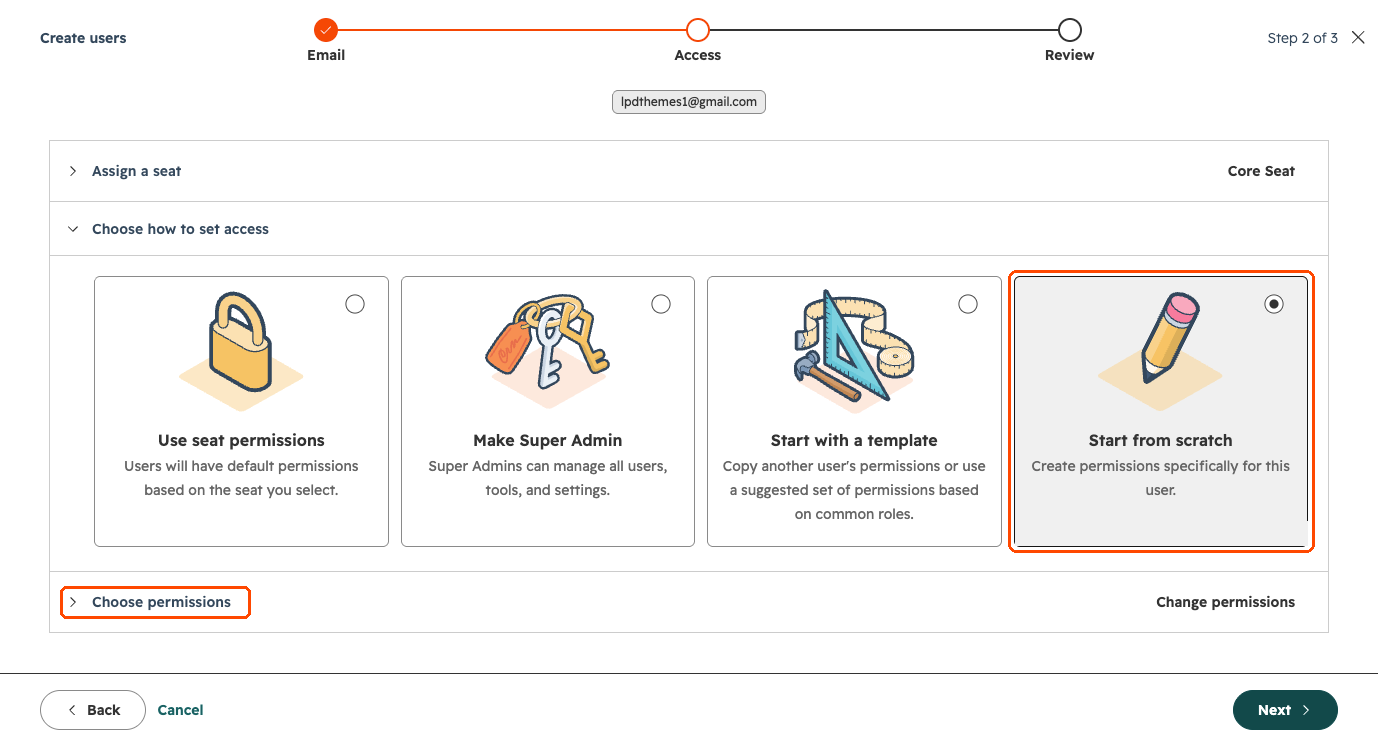
Start from scratch
Open Choose how to set access, pick Start from scratch, then open Choose permissions.
Step 6 of 8
Marketing permissions
Click Marketing. Turn on Segments, Forms, Delete form submissions, Files, Marketing Access and CTA, and every website tool: Blog, Landing pages, Website pages, HubDB, URL Redirects, Global content and theme settings, Design tools and Content staging. Open each one and turn on View, Edit and Publish. Leave email, ads, social and the rest off.
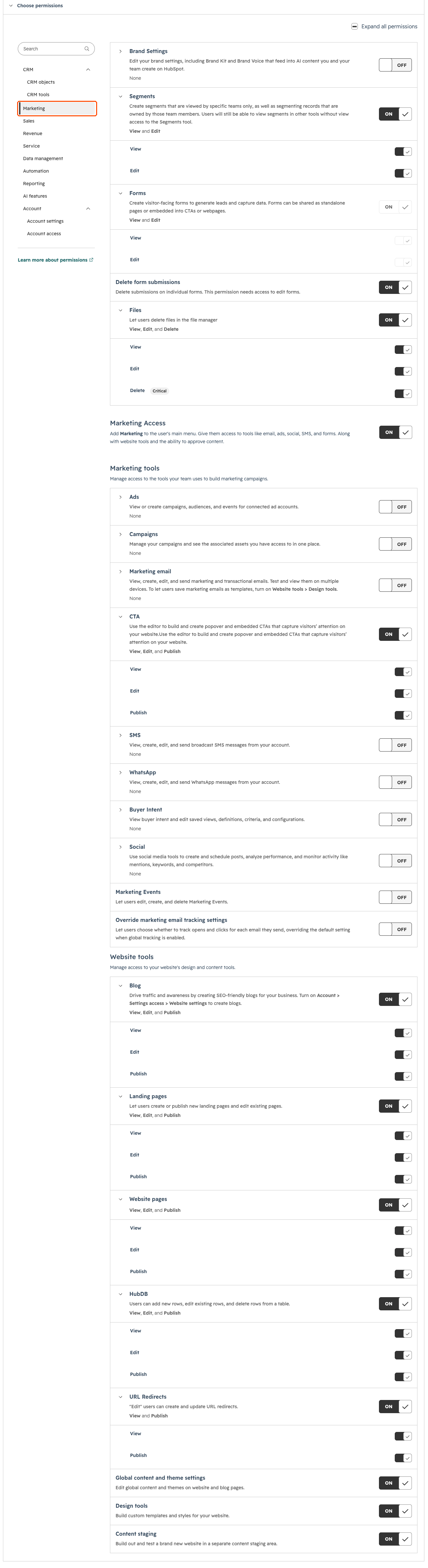
Scroll inside the screenshot to see every permission ↓
Step 7 of 8
Account settings
Click Account settings and turn on Template Marketplace access, Website settings and Domain settings. Leave billing and the rest off.
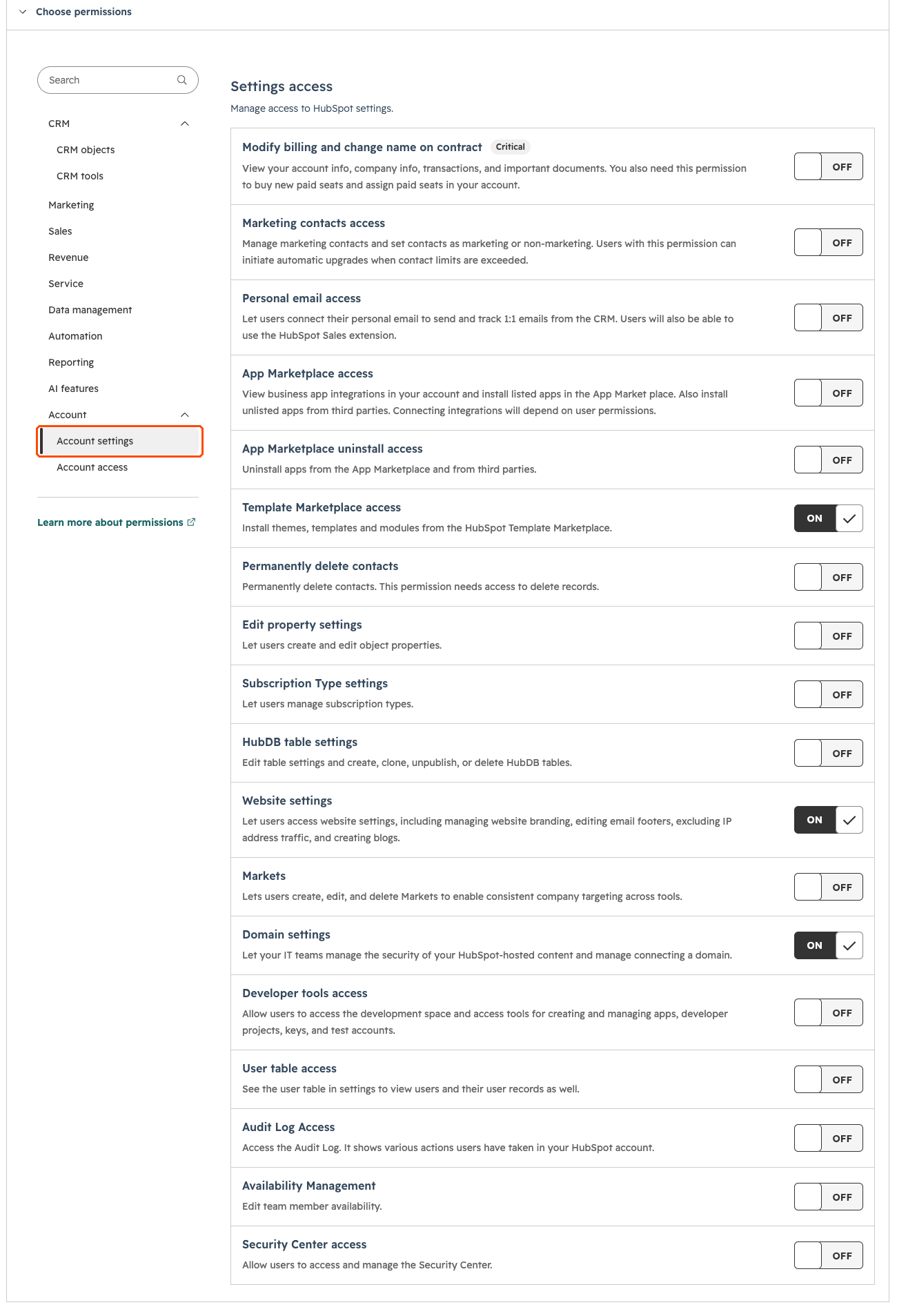
Scroll inside the screenshot to see every permission ↓
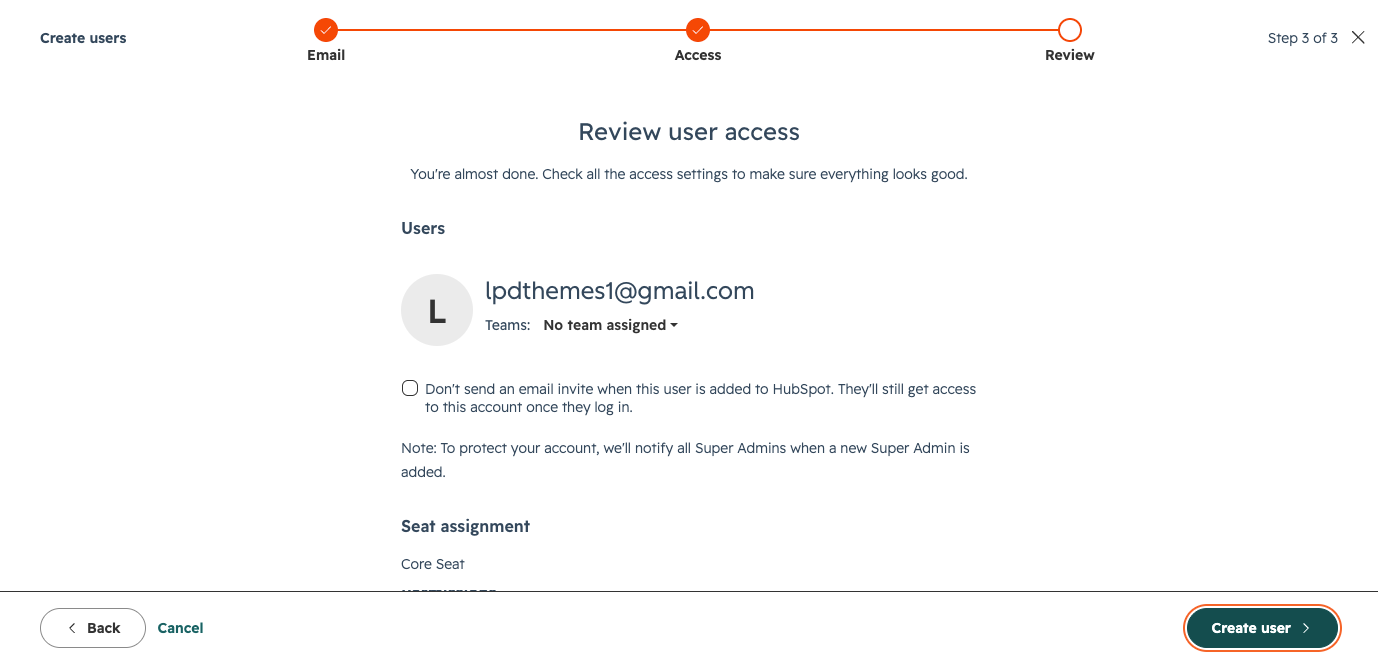
Step 8 of 8
Create the user and tell me
Click Next, check the summary, then Create user. Tell me when it’s done and I accept the invite. You can remove my user any time after handover.
This is the access for website work. For CRM and integration jobs, I send the exact permissions with your price, because they depend on the job. Screenshots from HubSpot, November 2026.
For GrowBig owners
Build with GrowBig
Everything you need to build and launch the site yourself.
- Tutorial
HubSpot CMS and GrowBig onboarding
One 70-minute video in 15 chapters, from installing the theme to launch.
Open the tutorial → - Demo
GrowBig live demo
See every template before you build.
Open the demo → - Figma
Figma templates
Plan your pages with the same layouts as the theme.
Get the templates → - Updates
Theme updates
They come through the HubSpot marketplace. Build on a child theme, and updates never overwrite your work.
See how in the tutorial → - Free or paid
GrowBig Free vs paid
What the free version can do, and when you need the paid theme.
Compare the two → - Included
Two consulting sessions
Every GrowBig owner gets two online sessions with me, up to 60 minutes each, to use within 12 months of purchase.
Book a session →
Questions
Licence and payment questions
The ones GrowBig owners send me most.
Is $997 a one-time price?
Yes. You pay once on the HubSpot marketplace. There’s no yearly fee and no hidden cost, and theme updates are included.
Can I use it on more than one website?
Yes, on unlimited projects inside the HubSpot account where you bought it. Each other HubSpot account, such as a client’s, needs its own licence.
Can we pay by invoice?
The marketplace takes card payment and gives you the receipt. If you need an invoice instead, ask me: I can install the theme for you directly, but then it won’t update automatically.
Can I publish a site on the free version?
No. GrowBig Free is for building and testing: it shows “Build with GrowBig Free” and some features, like links, stop working once published. To launch, you need the paid theme.
Can I move my Free build to the paid theme?
Yes, if you’re on Content Hub Professional or Enterprise and built on a child theme. Give me access and I can do the switch for you. On Starter it isn’t possible.
Which HubSpot plan do I need?
Any paid Content Hub plan: Starter, Professional or Enterprise. The theme works the same on all of them.
Where are the licence terms?
Read the GrowBig licence or the GrowBig Free licence.
Ask me
Still stuck? Ask me
Tell me what you tried and where it stopped. A screenshot or a link to the page helps.